WordPress powers more than 40% of the web, and much of its daily routine is still manual work in wp-admin: updating plugins one by one, reviewing users, exporting the database before touching anything. Meanwhile, an assistant like Claude Code lives exactly where WordPress keeps its other, far less known face: the terminal. The bridge between the two has existed for more than a decade, it's official, and it's called WP-CLI. In this article we explain what it is, how to connect Claude Code to a WordPress site —local or remote— and which real tasks the pair solves.
What WP-CLI is and why it's the perfect language for an AI
WP-CLI is the official command-line interface for WordPress: a program you install once that lets you administer any WordPress site by typing commands instead of navigating the panel. It has existed since 2011, is maintained as an official community project, and managed hosts use it daily to administer millions of installations.
Almost everything you do in wp-admin has its command: wp plugin update --all updates the plugins, wp user list lists the users, wp post create publishes a post. But the interesting part is what the panel does not offer and WP-CLI does:
wp search-replace, which changes a string across the entire database —the classic case: a domain migration— while respecting the serialised data a raw SQL replace would corrupt.wp core verify-checksums, which compares every core file against the original on wordpress.org and exposes suspicious modifications: the first test we run when a hack is suspected.wp db export, a database backup in one command, no backup plugins involved.
And why does this matter for AI? Because an assistant like Claude Code speaks terminal natively. A visual panel is designed for human eyes and mouse: to operate it, an agent has to interpret the screen and guess where to click — slow and fragile. A command, by contrast, is text: precise when written, verifiable when its output is read, composable with the next one. Claude Code runs wp plugin list, reads the returned table, spots the outdated plugins and chains the next command. No screenshots, no guessing, no room for "I think I clicked the right thing".
And there's a detail that seems custom-built for agents: almost any command accepts --format=json or --format=csv. The output stops being text for human eyes and becomes structured data the assistant processes without ambiguity: it doesn't interpret a table, it reads an exact data listing of the site's state.
It's the same logic we covered with MCP servers: giving the AI hands that already speak its language. The difference is that here the bridge doesn't need installing on the assistant's side: WP-CLI has spent fifteen years waiting for this moment.
How to install WP-CLI on your server (two minutes, honestly)
The most common scenario is also the simplest: your WordPress lives on a Linux server at your host and you connect over SSH. Most managed providers ship WP-CLI preinstalled, so the first step is checking:
ssh user@your-server.com
wp --info
If it answers with the PHP and WP-CLI versions, there's nothing to install. If it doesn't have it, it's three commands (the only requirement is PHP 7.2.24 or higher):
curl -O https://raw.githubusercontent.com/wp-cli/builds/gh-pages/phar/wp-cli.phar
chmod +x wp-cli.phar
sudo mv wp-cli.phar /usr/local/bin/wp
The third command is what makes wp work from any folder: /usr/local/bin is already on the PATH of any Linux system, so there's nothing else to configure. On shared hosting without root permissions, that step changes: move the file to ~/bin/wp and add that folder to your PATH by hand:
mkdir -p ~/bin && mv wp-cli.phar ~/bin/wp
echo 'export PATH=$HOME/bin:$PATH' >> ~/.bashrc && source ~/.bashrc
From the site's folder, wp core version should return the installed WordPress version. If it does, the connection with Claude Code is technically ready: nothing else is needed. (Working locally instead? Modern development environments like Local or DDEV already ship it out of the box.)
How to connect Claude Code to WordPress: one folder and three files
Connecting Claude Code to WordPress takes exactly three pieces: Claude Code on your computer, WP-CLI on both ends and an SSH alias pointing at the server. No plugins, no gateways, no middleman services: the connection is the terminal itself.
It helps to be clear about the geography: Claude Code works on your computer and the WordPress lives on the server; the bridge between them is SSH. On your machine you create a folder for the site —it doesn't need to hold a single WordPress file— and inside go three small files answering three questions: where the site lives, how it must be treated, and what the assistant may touch without asking. Let's take them one by one.
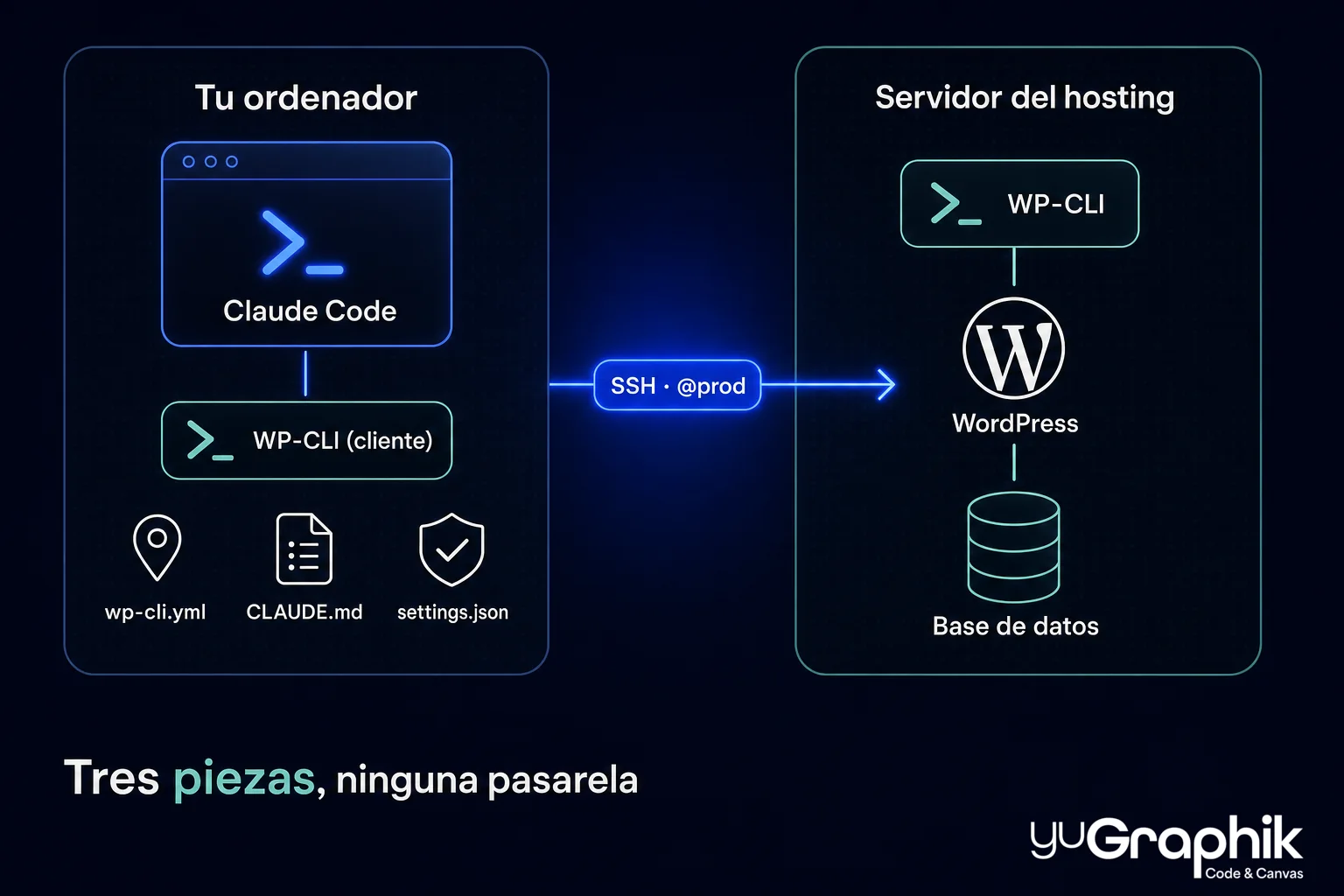
First, the one prerequisite: install WP-CLI on your computer too, even though there's no WordPress there. It acts as a messenger: when Claude Code runs a command, your machine's WP-CLI opens the SSH connection and hands it to the server's WP-CLI, which is the one doing the actual work. And the assistant needs no explanation of the tool: it knows it inside out.
1. wp-cli.yml: where your WordPress lives
The first file answers the most basic question. It defines an alias: a short nickname —here @prod, for production— that stores the server's full address so you never have to type it again:
@prod:
  ssh: deploy@client.com/var/www/client.com
From that moment on, any command reaches the server by prepending the nickname: wp @prod plugin list lists the live site's plugins from your terminal. Only two things are needed: the server must have WP-CLI installed (managed hosts usually ship it) and your SSH key must have access.
2. CLAUDE.md: how the site must be treated
The second file is the one Claude Code reads at the start of every session: the house rules, written in plain language, no syntax to learn. For a WordPress site, ours looks like this:
# Site: client.com — WordPress

## Environment
- The WordPress lives on the hosting server: `wp` commands travel over SSH

## Rules
- Before any database change: `wp db export`
- `wp search-replace` always runs with `--dry-run` first
- Never read or modify the credentials in `wp-config.php`
3. settings.json: what it may touch without asking
The third file, .claude/settings.json, is the permission policy: it governs every command with three states —ask, allow or deny—. The sensible configuration for WordPress is asymmetric: reading is free; touching asks first.
{
  "permissions": {
    "allow": [
      "Bash(wp plugin list:*)",
      "Bash(wp theme list:*)",
      "Bash(wp user list:*)",
      "Bash(wp post list:*)"
    ],
    "deny": [
      "Bash(wp db drop:*)",
      "Bash(wp db reset:*)"
    ]
  }
}
Everything not on the list —any command that writes, updates or deletes— falls into the default state: ask. Ten seconds of review before a wp plugin update --all in production is cheap insurance.
And that's it: one folder and three files. You open Claude Code there, ask in natural language, and every wp command travels over SSH to the server, runs, and returns its output to the conversation.
WP-CLI's SSH aliases: from one site to the whole portfolio
The @prod alias we just defined is the minimal version of a mechanism built to grow. What if the server hosts several WordPress installations? No problem: WP-CLI operates on the installation in the folder where it runs, so the path attached to each alias decides the site. On a VPS with several clients, each installation gets its own alias even though they all share the machine:
@client-a:
  ssh: deploy@server.com/var/www/client-a.com
@client-b:
  ssh: deploy@server.com/var/www/client-b.com
@client-c:
  ssh: deploy@server.com/var/www/client-c.com
And here comes the gift for agencies: the special @all alias, which WP-CLI ships by default, runs the same command on every defined alias. A single wp @all plugin list --update=available reviews the pending updates across your whole portfolio of sites in one go — the question "which clients have plugins waiting for updates?" goes from a morning of logins to a single line.
A performance detail: each command opens its own SSH connection. If the wait becomes noticeable —a distant server, many commands in a row—, enable ControlMaster and ControlPersist in your ~/.ssh/config: the first connection stays open in the background and every following one reuses it instantly, without changing anything in the commands:
Host client.com
  ControlMaster auto
  ControlPath ~/.ssh/control-%r@%h:%p
  ControlPersist 10m
For Claude Code this means operating the server without leaving the conversation. A serious monthly update flow looks like this: database backup, update of core, plugins and themes, and a check that the site still works. Steps that by hand take half an hour of attention; directed, they're one request and a couple of confirmations.
The alias makes it easy to get there; the rules in CLAUDE.md decide what can be touched on arrival: in production, nothing gets written without your confirmation.
What Claude Code can do with WP-CLI: real requests and what happens underneath
Theory is easier to grasp with concrete jobs. These are the ones we repeat most:
| You ask | What happens underneath |
|---|---|
| "Which plugins have pending updates?" | wp plugin list --update=available, then a summary of what's urgent |
| "Back up and update everything" | wp db export first; then core, plugins, themes and translations, checking the site after each step |
| "Change the domain across the whole database" | wp search-replace with --dry-run first, shows you how many rows would change and only runs if you approve |
| "Is this WordPress hacked?" | wp core verify-checksums, wp plugin verify-checksums --all and a review of suspicious administrator users |
| "Find the plugin that's breaking the site" | Deactivates plugins one by one (wp plugin deactivate), checks after each and isolates the culprit |
| "Publish these 15 posts from the Markdown files in this folder" | A loop of wp post create reading each file, with the title, category and status you specify |
| "Why is it slow?" | wp profile stage and wp doctor check --all (two official extensions) to point at slow hooks and queries |
| "Clean up and regenerate" | wp transient delete --all, wp cache flush, wp media regenerate after changing image sizes |
Notice the pattern, the same one we saw with MCP: the assistant stops working from memory and starts working with the site's real state, in the moment. It doesn't say "you should review your plugins": it lists them, cross-checks them and brings you the finished diagnosis.
The craft, in a skill: teach it your routines once
You may be missing the typical command cheat sheet here. There isn't one, and it's deliberate: the commands are not yours to learn. WP-CLI has been documented for fifteen years and Claude Code knows it inside out; your job is to ask, not to memorise.
What the assistant cannot know is how you work: in what order you update, what you check after each change, where the line sits between "do it" and "warn me first". That craft gets packaged into a skill, the same mechanism we saw with Remotion: a bundle of knowledge the assistant loads automatically when it detects it's working with WordPress. Ours looks like this:
---
name: wordpress-maintenance
description: WordPress maintenance routines with WP-CLI. Use when updating,
  backing up, migrating or diagnosing a WordPress site.
---

# Skill: WordPress maintenance

## Update routine
1. `wp db export` before touching anything
2. Update core, plugins and themes
3. Check the homepage, one post and the contact form
4. Close with `wp core verify-checksums`

## Performance diagnosis
- If missing, install the diagnostic extensions:
  `wp package install wp-cli/profile-command wp-cli/doctor-command`
- Start with `wp profile stage` and point at the slowest phase before proposing anything
Two details make it work: the file is saved as SKILL.md inside ~/.claude/skills/wordpress-maintenance/, on your computer and outside any project; and the description in the header is what Claude Code reads to decide when to load it: describe it well and the skill will show up on its own whenever the conversation touches WordPress.
And how does this differ from CLAUDE.md, when both are Markdown files Claude Code reads? In three ways. The when: CLAUDE.md loads in full every session, relevant or not; the skill, only when the task calls for it. The where: the file lives in one project's folder; the skill, outside them all, so it applies in any of them. And the what: CLAUDE.md is for the facts and red lines of that site; the skill, for reusable craft. In short: CLAUDE.md is the contract with one site; the skill is how you work, and it travels with you. For an agency looking after twenty WordPress sites, the same skill serves all twenty — the judgement is written once and applied always. It's the same division of roles we described in the MCP article: the skill is the knowledge; WP-CLI, the hands.
The other door: REST API, Application Passwords and the WordPress MCP
WP-CLI demands something you don't always have: access to the machine, whether local or via SSH. When there isn't any —a host without SSH, a third party's site that only gives you a user account—, there's a second door: the WordPress REST API with Application Passwords, the application-specific passwords WordPress has shipped by default since version 5.6. They're generated in the user's profile, revoked with one click, and let Claude Code read and write content over HTTP without knowing your real password.
And the most interesting move of the past year points the same way: WordPress 6.9 introduced the Abilities API, a registry where core, plugins and themes declare their capabilities in a typed way —what each function does, which parameters it needs, what it returns and who is allowed to invoke it—. On top of it, the WordPress AI team publishes the official MCP Adapter, which translates those abilities into the MCP protocol so a client like Claude Code can discover and use them, just like the servers we reviewed in the MCP article. It ships two transports: HTTP to operate remote sites and STDIO locally, leaning precisely on WP-CLI — the two routes in this article end up converging. The design is cautious by default: the server only exposes discovery primitives, and every sensitive ability must be explicitly marked public in code, a sign that today it targets developers; around it, commercial plugins are already blooming that offer the same behind a toggle. Young territory still, but the direction is clear: WordPress wants to be operable by agents from outside the server too, and officially so.
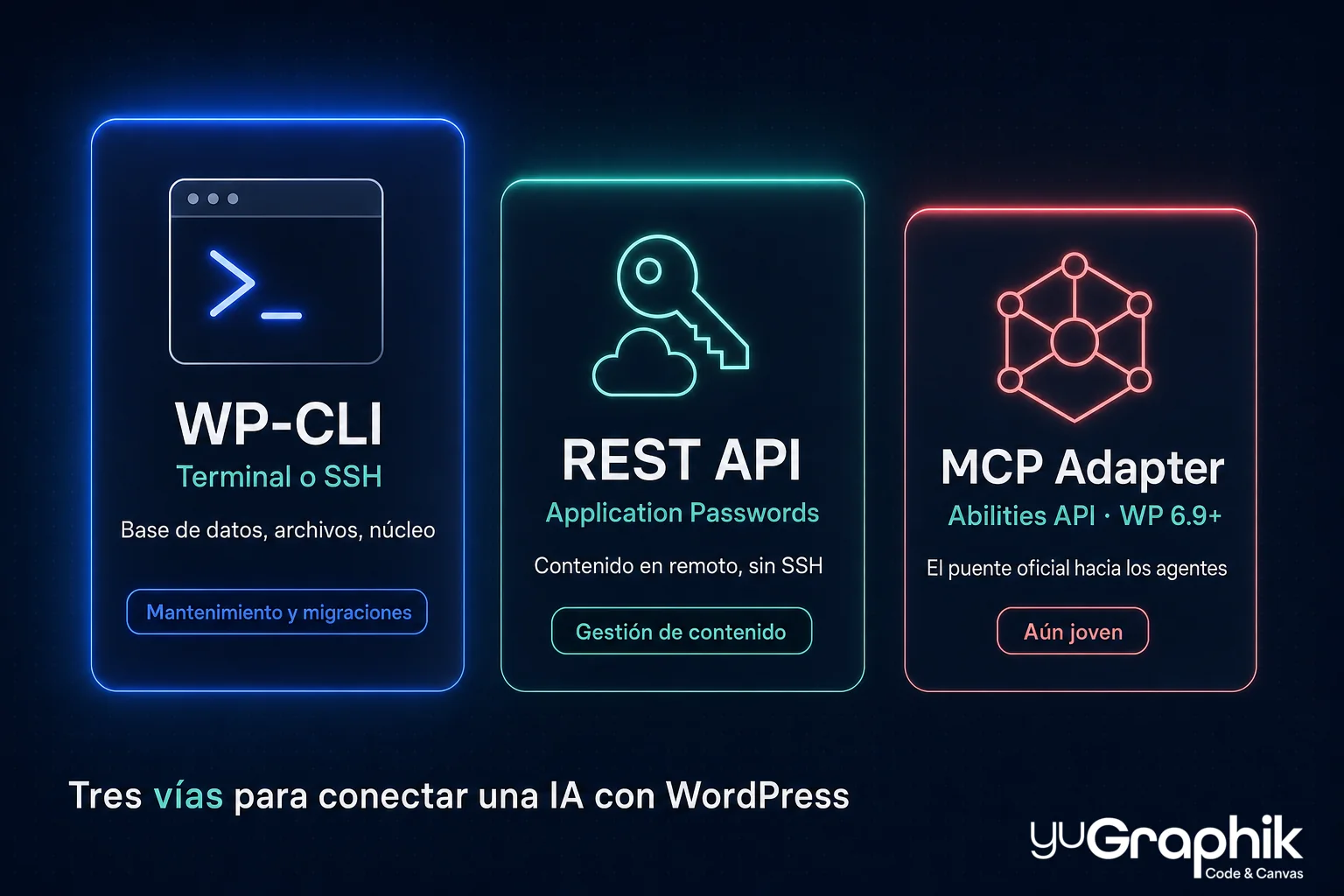
Which one to choose? The rule is simple:
| Route | What it needs | What it reaches | Best for |
|---|---|---|---|
| WP-CLI | Local terminal or SSH | Everything: database, files, core, plugins | Maintenance, migrations, audits, development |
| REST API + Application Passwords | Just a site user | What the API exposes: content, media, users, taxonomies | Remote content management without SSH |
| MCP Adapter (Abilities API) | WordPress 6.9+ and exposing abilities in code | The abilities the site declares public | The official bridge to agents; still young |
For serious maintenance work, today the answer is WP-CLI, no contest: it's the only route that reaches the database and the files, which is where the real problems live.
When to use Claude Code with WP-CLI (and when not to)
| Situation | Claude Code + WP-CLI? |
|---|---|
| Routine maintenance (backups, updates, cleanup) | Yes, the textbook case |
| Domain or server migrations | Yes: search-replace is gold |
| Auditing an inherited or possibly compromised site | Yes, with full traceability |
| Loading or transforming content at scale | Yes, in a loop from your files or data |
| Custom theme and plugin development | Yes: the assistant writes the PHP and tests it with WP-CLI itself |
| Visually laying out one specific page | No: the visual editor is still more comfortable for that |
| No SSH and no local environment | Partial: the REST route remains, enough for content |
The rule we use, borrowed straight from MCP: if a wp-admin task repeats every week, it's a candidate for this workflow. If it's a one-off visual tweak, open the editor and be done.
Why it matters to us as an agency
At yuGraphik we champion static architectures for many projects —we make the case in Next.js vs WordPress—, but the market's reality is stubborn: a huge share of businesses live on WordPress and will keep doing so. For those sites, the Claude Code + WP-CLI pair changes the economics of maintenance: hours of repetitive clicking become minutes of conversation, and what's saved on routine gets invested in what actually moves the needle, like performance —if your WordPress fails its metrics, start with our Core Web Vitals guide— or content.
And there's a detail we particularly like: WP-CLI is official, open infrastructure with fifteen years of maturity. Nothing in this workflow depends on a trendy plugin or a service that might vanish: it's the same bet on durable standards that guides everything we build.
Conclusion
Connecting Claude Code to WordPress requires no plugins, gateways or exotic configuration: the bridge has been sitting in the terminal for years, and it's called WP-CLI. With the assistant in the right folder, a CLAUDE.md holding the house rules and permissions set properly, maintaining a WordPress site goes from a list of pending clicks to a conversation with confirmations. Start with the harmless —a plugin inventory, a health audit— and work upwards with the confidence that backups provide.
If you manage one or several WordPress sites and want this workflow working for you —from maintenance to a full migration—, let's talk.
Frequently asked questions
What is WP-CLI in a nutshell?
WP-CLI is WordPress's official command-line interface: it lets you do from the terminal almost everything you do in the admin panel —update plugins, create posts, manage users— plus quite a few things the panel doesn't offer, like changing the domain across the entire database while respecting serialised data, or verifying core integrity file by file.
Why is WP-CLI the best way to connect an AI to WordPress?
Because an assistant like Claude Code works natively in the terminal: commands are text, they compose with each other, they can be repeated and their output can be verified. Instead of the AI trying to guess where to click in wp-admin, it runs precise commands, reads the output and decides the next step. Both sides speak the same language.
Do I need to know how to code to use Claude Code with WordPress?
Not for management tasks: you ask in natural language ('which plugins are outdated?', 'back up the database and update everything') and the assistant translates it into WP-CLI commands, runs them with your confirmation and reports back. Knowing how to code only matters if you also want to develop custom themes or plugins.
Does it work with my hosting? My site isn't local.
If your hosting offers SSH access —most managed hosts and many shared ones include it, often with WP-CLI preinstalled—, Claude Code can operate the remote site through WP-CLI aliases. If there's no SSH, there's the REST API route with Application Passwords: more limited, but enough to manage content.
Is it safe to let an AI touch my WordPress?
With method, yes. The rules we apply: a database backup before any change (wp db export), a rehearsal with --dry-run before bulk operations, and Claude Code's permission policy set so read commands run freely while write commands ask for confirmation. The same precautions you'd take with a new technician.
What's the difference between using WP-CLI and the WordPress MCP?
WP-CLI needs access to the machine (local or via SSH) and in exchange gives total power: database, files, core. The MCP/REST route works remotely with no server access, but is limited to what the API exposes: content, users, taxonomies. For maintenance and migrations, WP-CLI; for content management without SSH, the REST API or the official MCP Adapter WordPress is building on its Abilities API.
Does it work with WooCommerce too?
Yes. With WooCommerce installed, WP-CLI adds the wp wc commands to manage products, orders and customers from the terminal, and everything else (backups, updates, search-replace) applies to a shop just the same. All the more so, in fact: on a production shop, dry runs and prior backups are not optional.
What if the assistant breaks something?
The workflow is designed so that breaking is hard and undoing is easy: the database is exported before every change (rolling back is a wp db import), theme code lives in version control (rolling back is a git revert) and bulk operations are rehearsed first. The real risk is skipping those steps, not the tool.